The short answer is as much as possible. The long answer is that Churney requires data about:
Additionally, we need to know the location (region) of your data warehouse.
To create the views, we would need to create queries to hash the PII columns.
For context, Facebook has a guide on how to hash contact information for their conversion api: https://developers.facebook.com/docs/marketing-api/conversions-api/parameters/customer-information-parameters. Google has a similar guide for enhanced conversions using their ads api https://developers.google.com/google-ads/api/docs/conversions/enhance-conversions. Basically, we want to hash columns that contain data which would allow one to determine the identity of a user: First name, last name, birth day, street address, phone number, email address etc.
The specific contact information columns normalization patterns are as follows:
email (Meta) — lowercase, leading and trailing spaces removed → john.doe+promo@gmail.comgoogle_email (Google) — same, and for gmail.com / googlemail.com also remove every period and any + suffix before the @ → johndoe@gmail.comphone (Meta) — digits only, country code kept, leading zeros removed, no + → 442071838750google_phone (Google) — the same digits with a + prefix → +442071838750Also, please be aware of the following requirements:
Phone numbers must include a country code. Meta and Google both match on the country code, and Google rejects a number without one instead of repairing it. Always store the country code, even when every customer is in one country. Churney cannot add it later, because a SHA-256 hash cannot be reversed.
Drop the national trunk prefix. A UK number written 020 7183 8750 is +44 20 7183 8750, not +44 020 7183 8750. The SQL below removes leading zeros and the 00 international prefix, but it cannot find a trunk zero in the middle of a number.
Do not hash an empty value. SHA256('') is a valid 64-character hash that every customer without a phone number would share. Churney rejects it. The SQL below returns NULL instead. Do the same for placeholder strings such as none or null.
Hashes must be lowercase hex, 64 characters, with no 0x prefix.
Two columns per identifier. Meta and Google need different normalization, so share both email and google_email, and both phone and google_phone.
Create a dataset named churney .
If the raw data contains email, phone, birthday or other identifiers, the columns need to be excluded and hashed in the view.
Example, if the raw data lies under raw_data.sensitive and you would like to create a view churney.sensitive_data_view
CREATE OR REPLACE VIEW aws.churney_views.users AS
WITH normalized AS (
  SELECT
    *,
    NULLIF(LOWER(TRIM(email)), '') AS email_normalized,
    SUBSTRING_INDEX(NULLIF(LOWER(TRIM(email)), ''), '@', 1) AS email_local_part,
    SUBSTRING_INDEX(NULLIF(LOWER(TRIM(email)), ''), '@', -1) AS email_domain,
    NULLIF(REGEXP_REPLACE(REGEXP_REPLACE(phone, '[^0-9]', ''), '^0+', ''), '') AS phone_digits
  FROM aws.raw_data.users
)
SELECT
  user_id,
  SHA2(email_normalized, 256) AS email,
  SHA2(
    CASE
      WHEN email_domain IN ('gmail.com', 'googlemail.com')
           OR email_domain LIKE 'gmail.co.%'
           OR email_domain LIKE 'googlemail.co.%'
      THEN CONCAT(REPLACE(REGEXP_REPLACE(email_local_part, '\\+.*$', ''), '.', ''), '@', email_domain)
      ELSE email_normalized
    END, 256) AS google_email,
  SHA2(phone_digits, 256) AS phone,
  SHA2(CONCAT('+', phone_digits), 256) AS google_phone,
  SHA2(NULLIF(LOWER(TRIM(full_name)), ''), 256) AS full_name,
  SHA2(DATE_FORMAT(birthday, 'yyyyMMdd'), 256) AS birthday,
  country_code, signup_date, created_at
FROM normalized;
If you want to test it how the script looks with some data:
WITH sensitive AS (
  SELECT 1 AS id, 'abc' AS name, '  John.Doe+promo@Gmail.COM ' AS email,
         DATE '1990-04-05' AS birthday, '+44 20 7183 8750' AS phone
  UNION ALL SELECT 2, 'jane doe', 'a.b@example.com', DATE '1991-01-02', '00 1 (650) 555-1212'
),
normalized AS (
  SELECT
    *,
    NULLIF(LOWER(TRIM(email)), '') AS email_normalized,
    SPLIT(NULLIF(LOWER(TRIM(email)), ''), '@')[SAFE_OFFSET(0)] AS email_local_part,
    SPLIT(NULLIF(LOWER(TRIM(email)), ''), '@')[SAFE_OFFSET(1)] AS email_domain,
    NULLIF(REGEXP_REPLACE(REGEXP_REPLACE(phone, r'[^0-9]', ''), r'^0+', ''), '') AS phone_digits
  FROM sensitive
)
SELECT
  email_normalized,
  CASE
    WHEN email_domain IN ('gmail.com', 'googlemail.com')
         OR email_domain LIKE 'gmail.co.%'
         OR email_domain LIKE 'googlemail.co.%'
    THEN CONCAT(REPLACE(REGEXP_REPLACE(email_local_part, r'\+.*$', ''), '.', ''), '@', email_domain)
    ELSE email_normalized
  END AS google_email_value,
  phone_digits AS phone_value,
  CONCAT('+', phone_digits) AS google_phone_value
FROM normalized;
And the result should be:
Given this input row:
  full_name     = 'abc'
  email    = 'John.Doe+promo@Gmail.com'
  phone    = '+1 (650) 555-1212'
  birthday = 1990-04-05

The view returns:
  full_name          = ba7816bf8f01cfea414140de5dae2223b00361a396177a9cb410ff61f20015ad
  email         = 80f9126efd0446cb338c54ea6fe3d4af8fa3fe93db0024b14150441550e632a2
  google_email  = 06a240d11cc201676da976f7b49341181fd180da37cbe40a77432c0a366c80c3
  phone  = e323ec626319ca94ee8bff2e4c87cf613be6ea19919ed1364124e16807ab3176
  google_phone  = 1e231c66011e7a2d867a9cfae267a6aff103cf4913640b6e71a99850fc0ffbc8
  birthday      = 01433d270632f5b4e3bff9da6f27d5c1fdf1f5eb45442adfa5f2f20bd6b6503b

These are the SHA-256 hashes of, in order:
  'abc', 'john.doe+promo@gmail.com', 'johndoe@gmail.com',
  '16505551212', '+16505551212', '19900405'
Go to your account -> Settings, and then Identity and access -> Users and create the service principal:


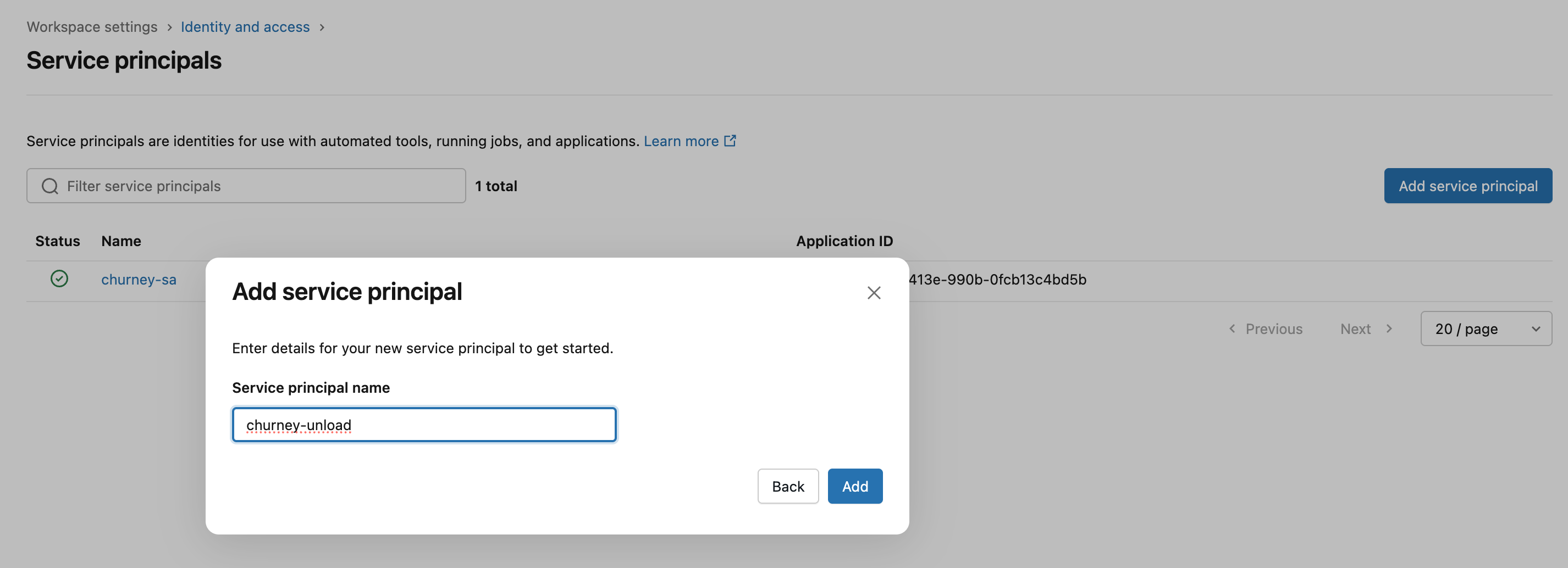
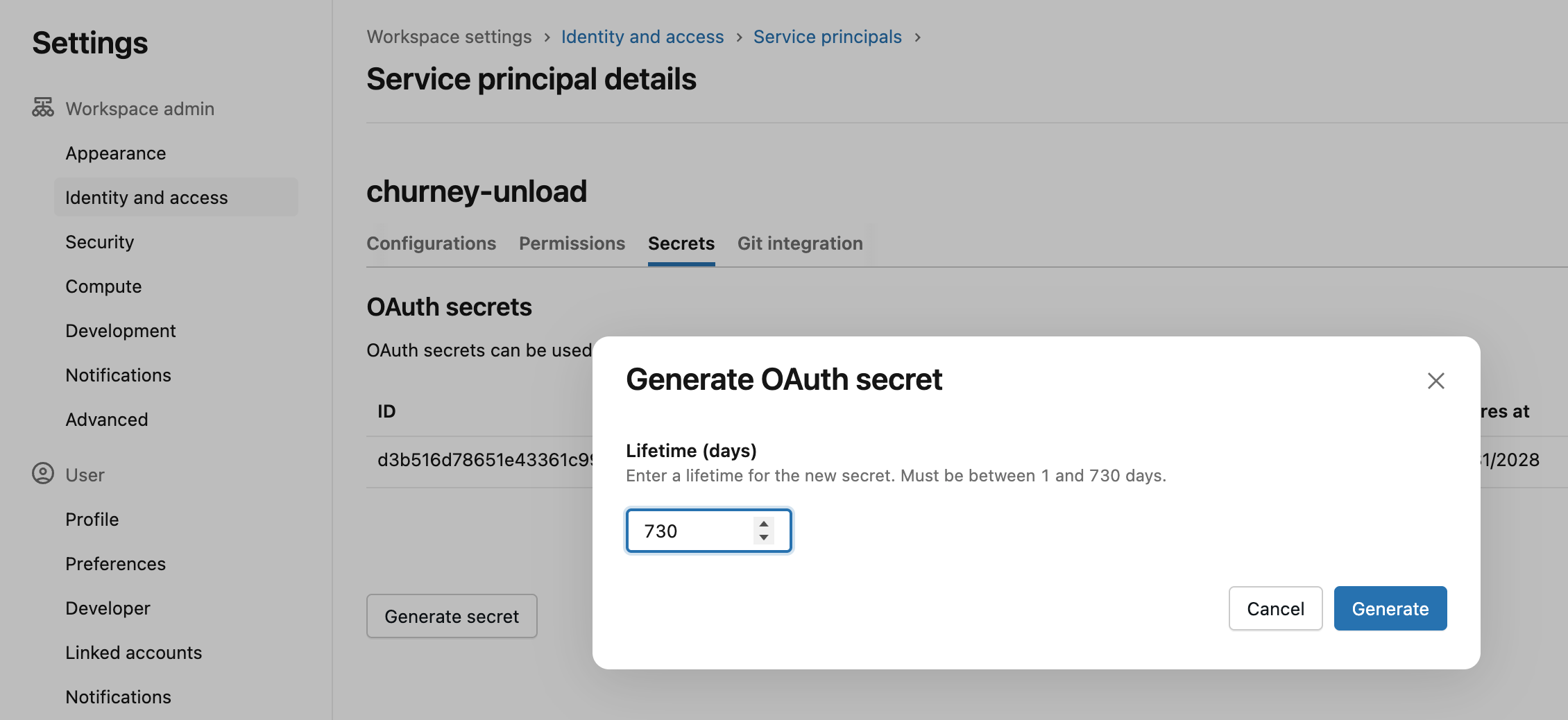
Then go to the service principal to generate a token as below. The maximum lifetime is 730 days, so please use that. Store the secret somewhere safe for now.
Create a group for the churney service princial as below:

And add the service principal to the group:
Let's create an s3 bucket for Churney. Make sure it is in the same region as your Databricks and public access is blocked.

In this example, we are creating a bucket named churney-databricks-unload.

First, we need to create a role and assign policies for Churney in AWS.
Go in IAM -> Policies in your AWS account:

And create a policy for Churney to access the bucket we created previously
{
    "Version": "2012-10-17",
    "Statement": [
        {
            "Sid": "VisualEditor0",
            "Effect": "Allow",
            "Action": [
                "s3:PutObject",
                "s3:GetObject",
                "s3:ListBucketMultipartUploads",
                "s3:ListBucket",
                "s3:DeleteObject",
                "s3:GetBucketLocation",
                "s3:ListMultipartUploadParts"
            ],
            "Resource": [
                "arn:aws:s3:::<churney-s3-bucket>/*",
                "arn:aws:s3:::<churney-s3-bucket>"
            ]
        }
    ]
}
Replace <churney-s3-bucket> with the name of the bucket you created above, in this example, with churney-databricks-unload
Then go to Roles to create a new role for churney with Custom trust policy:

and put this in the JSON field:
{
    "Version": "2012-10-17",
    "Statement": [
        {
            "Effect": "Allow",
            "Principal": {
                "Federated": "accounts.google.com"
            },
            "Action": "sts:AssumeRoleWithWebIdentity",
            "Condition": {
                "StringEquals": {
                    "accounts.google.com:sub": [
                        "<id_1>",
                        "<id_2>"
                    ]
                }
            }
        }
    ]
}
Replace <id_1> and <id_2> with the ids of the service accounts that Churney will give you.
Make sure you add the policy to the Churney role:

Go to your Databricks under Catalog -> Add a storage credential and create a storage credential, where you enter the arn of the churney role you added above. The output should look like below:

Now, go back to the role in AWS and update the trust policy as below:
{
    "Version": "2012-10-17",
    "Statement": [
        {
            "Effect": "Allow",
            "Principal": {
                "Federated": "accounts.google.com"
            },
            "Action": "sts:AssumeRoleWithWebIdentity",
            "Condition": {
                "StringEquals": {
                    "accounts.google.com:sub": [
                        "<id_1>",
                        "<id_2>"
                    ]
                }
            }
        },
        {
            "Effect": "Allow",
            "Principal": {
                "AWS": "arn:aws:iam::<your-aws-account-id>:role/<this-role-name>"
            },
            "Action": "sts:AssumeRole"
        },
        {
            "Effect": "Allow",
            "Principal": {
                "AWS": "arn:aws:iam::414351767826:role/unity-catalog-prod-UCMasterRole-14S5ZJVKOTYTL"
            },
            "Action": "sts:AssumeRole",
            "Condition": {
                "StringEquals": {
                    "sts:ExternalId": "<external_id>"
                }
            }
        }


    ]
}
where the <external_id> is in your storage credential details
Go to the storage credential and grant the below permissions to yourself

And finally run this on your SQL Editor:
CREATE EXTERNAL LOCATION IF NOT EXISTS `churney_external`
URL '<s3_url>'
WITH (STORAGE CREDENTIAL `churney_storage_credential`);
where the url contains your s3 bucket. In this example, the sql will look like below:
CREATE EXTERNAL LOCATION IF NOT EXISTS `churney_external`
URL 's3://churney-databricks-unload/'
WITH (STORAGE CREDENTIAL `churney_storage_credential`);
Then run:
GRANT CREATE EXTERNAL TABLE ON EXTERNAL LOCATION `churney_external` TO `Churney`;
GRANT READ FILES ON EXTERNAL LOCATION `churney_external` TO `Churney`;
Let’s assume that you would like to share the views under churney_views with Churney.

Churney will create external tables pointing at the s3 bucket, so let’s create a schema for the churney_exports
CREATE SCHEMA aws.churney_exports;Churney will maintain the exports here, so grant the permissions below:

For the churney_views schema, Churney only needs Data reader, so grant those permissions as below:

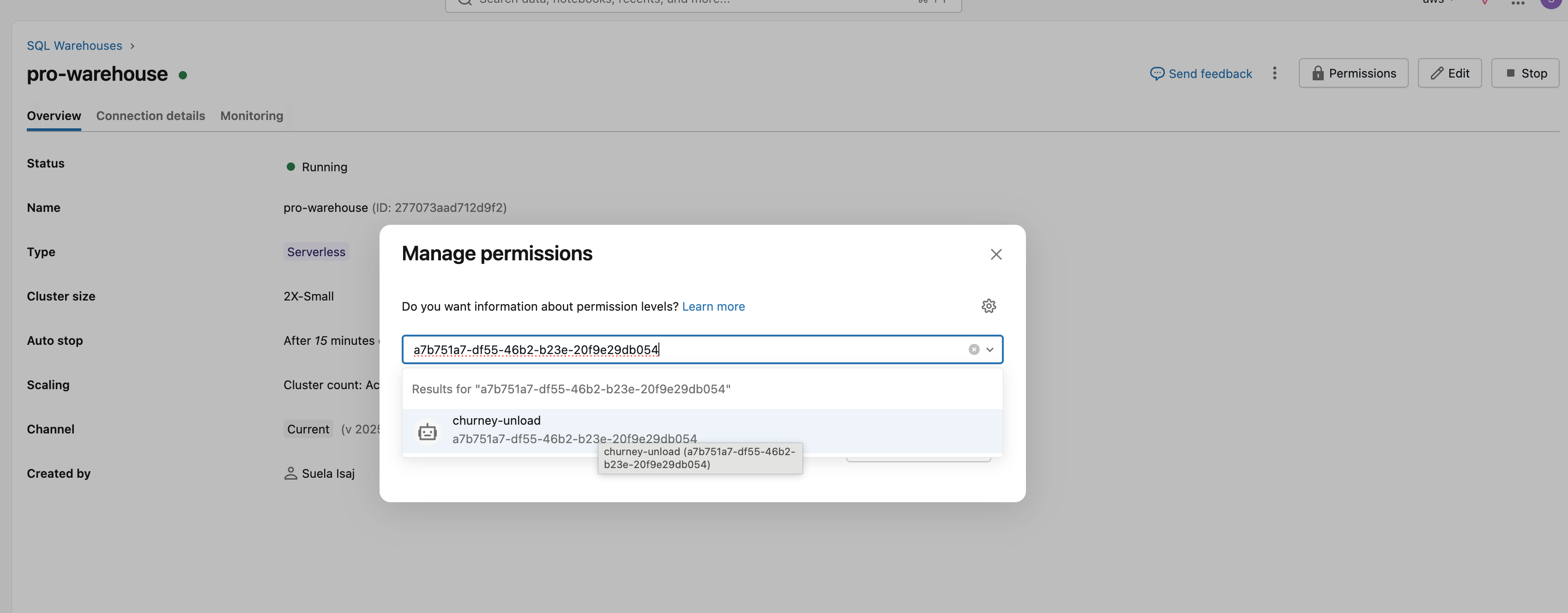
Finally, go the your warehouse, and add the service principal as below:
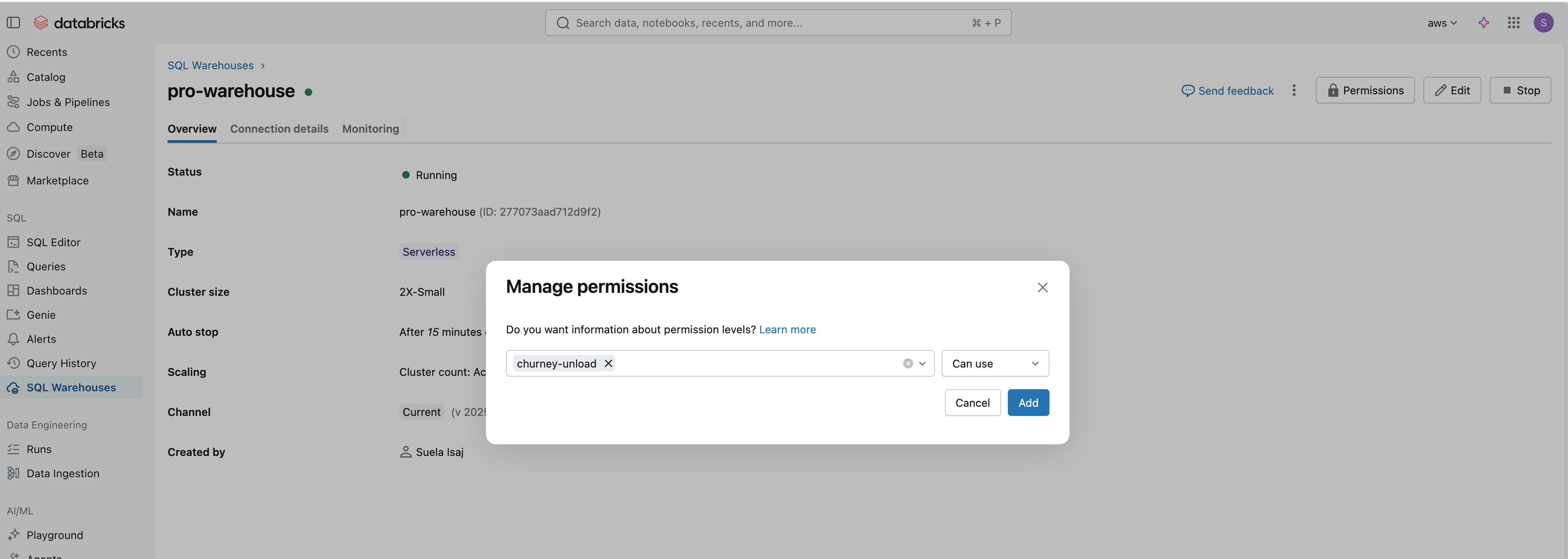

churney_exports)churney-databricks-unload)arn:aws:iam::*******:role/churney-databricks-access-role)aws)server_hostname and http_path as below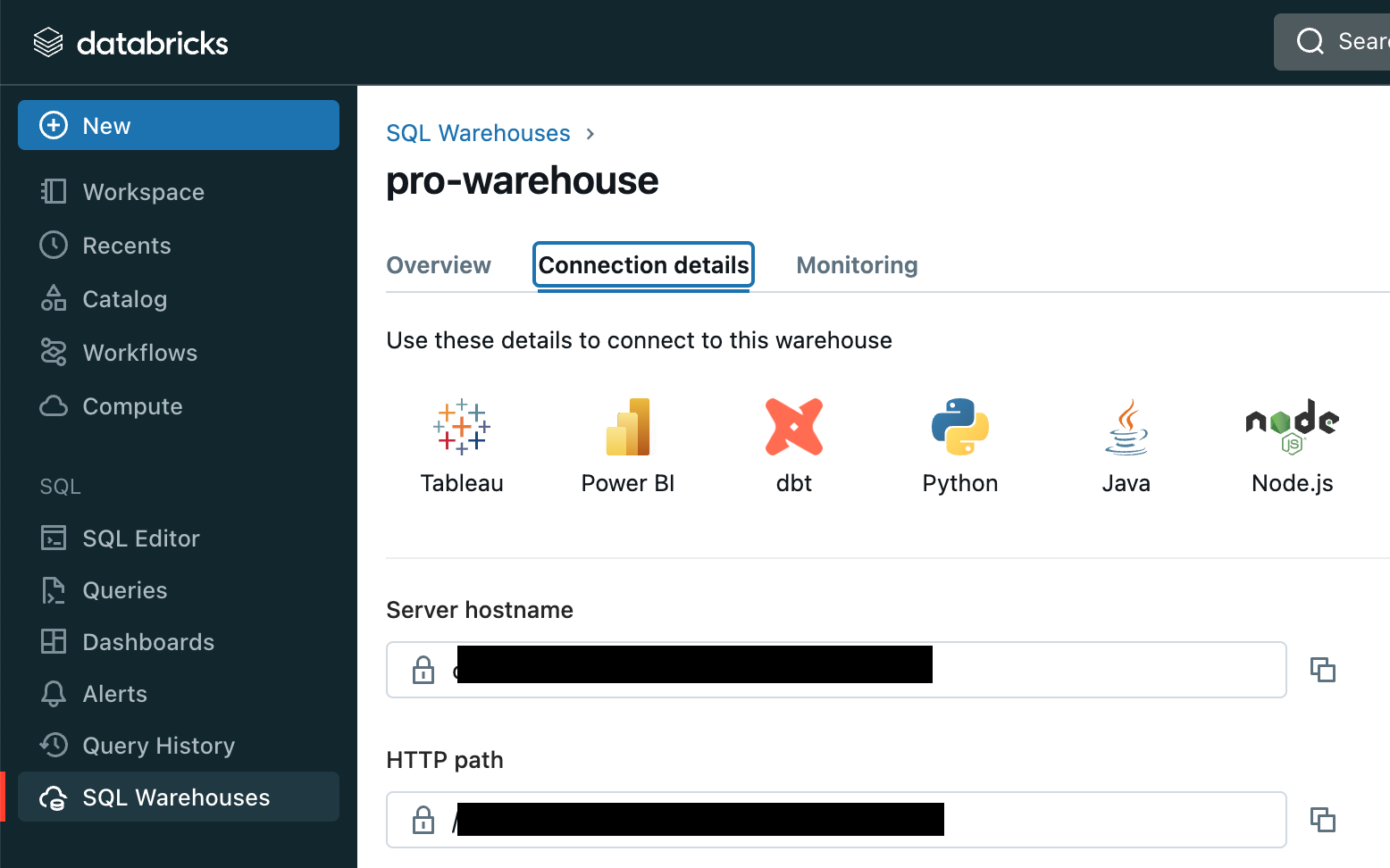
Your data warehouse has incredible value. Our causal AI helps unlock it.